SkyCompanion Help

Learn about all the features of SkyCompanion here.

Need more help? Ask our developers directly here!

Missions

How to create a mission:

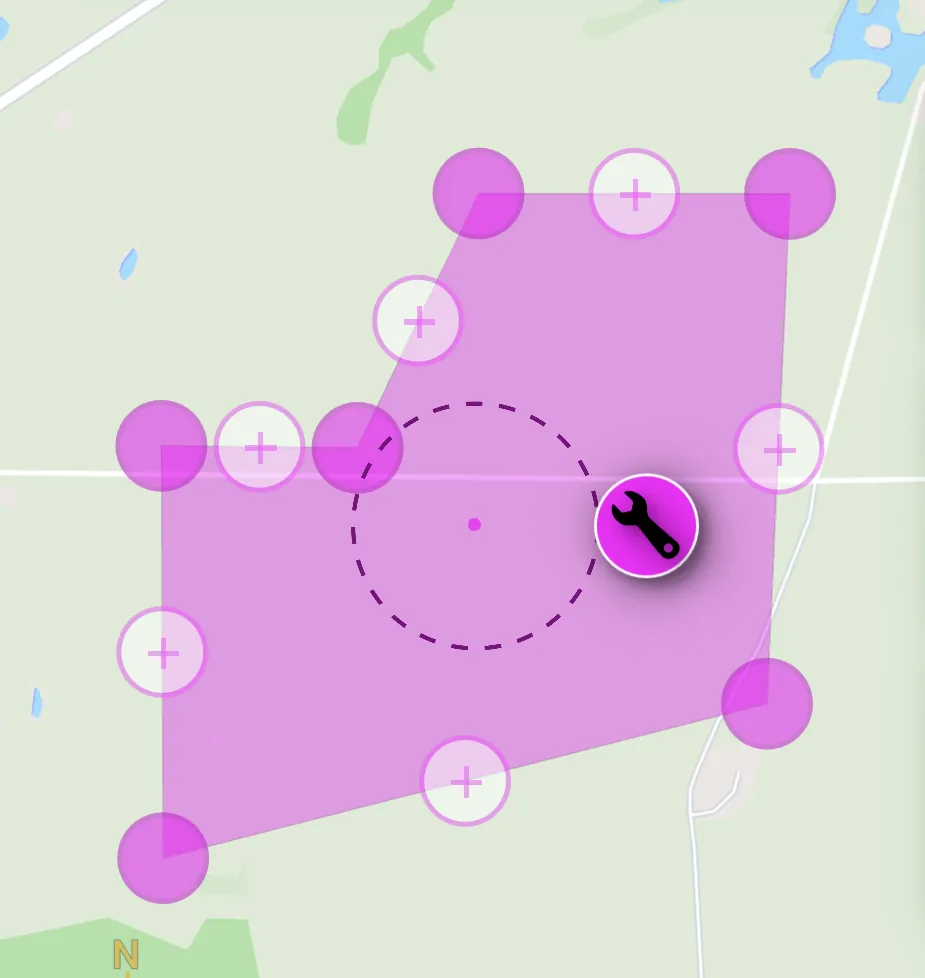
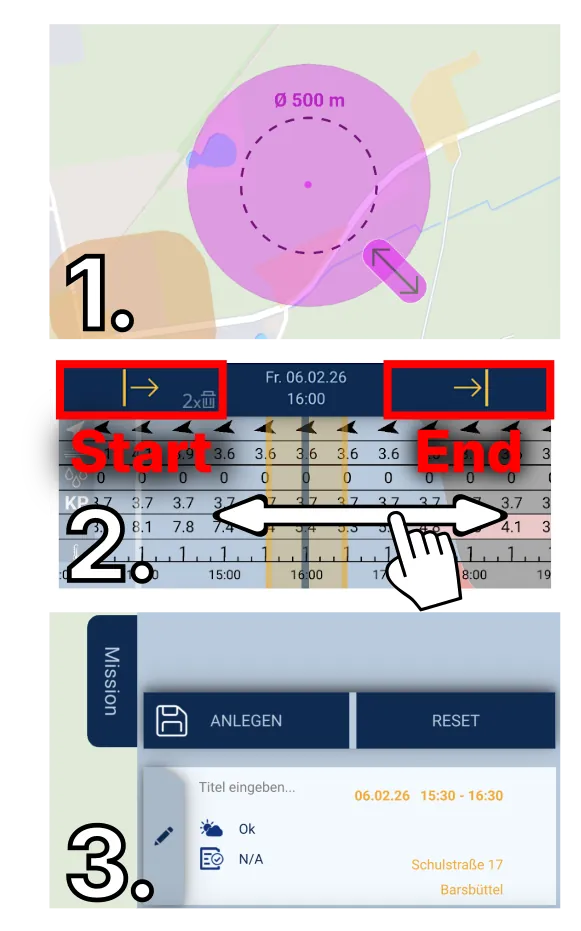
  1. Tap on the map at your desired location to set a mission area. You can drag the mission area and adjust its size using the slider.
  2. Set the time period of your mission in the timeline at the bottom. Slide the bar left and right with your finger. Use the |-> button to set the start of the mission and ->| to set the end.
  3. Now open the ‘Mission’ tab on the right side, enter a title for the mission, and tap ‘Add’.

Tipp:
Double-tap on the start arrow on the left (|->) to delete the selected time period again.

Anleitung zum Erstellen einer Mission im ETANA SkyCompanion

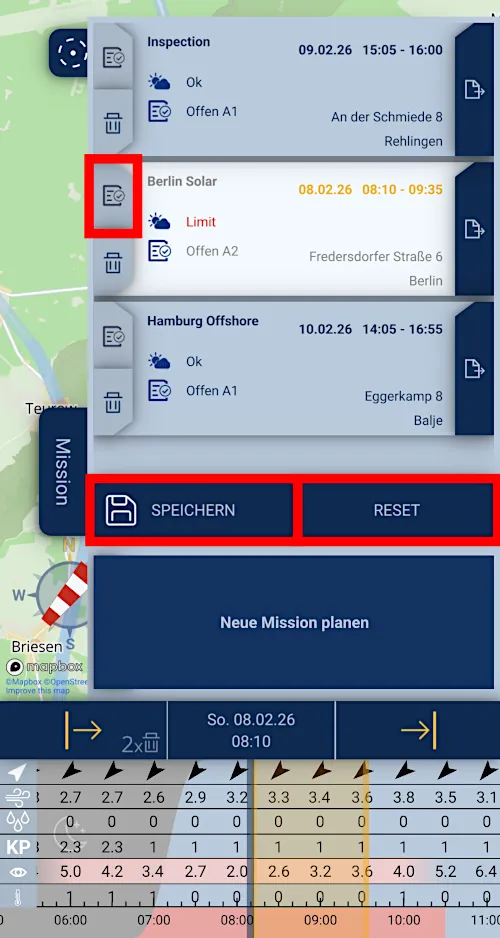
Open the ‘Mssion’ tab on the right side. Tap on the desired mission. You can now:

  1. Set your mission parameters and operations category using the checklist icon on the left.
  2. Change the time period on the timeline (see also ‘Create Mission’).
  3. Close the ‘Mission’ tab again and re-locate the mission area on the map (by tapping), move it, and change its size.

When you have edited a saved mission, this is indicated in the mission label at the bottom of the map with an asterisk *.

You must save your changes to the mission in the ‘Mission’ tab by tapping the ‘Save’ button. The ‘Reset’ button discards the changes.

Tip:
In Settings –> Mission Standards, you can specify your usual mission parameters.

Anleitung zum Mission speichern im ETANA SkyCompaninon

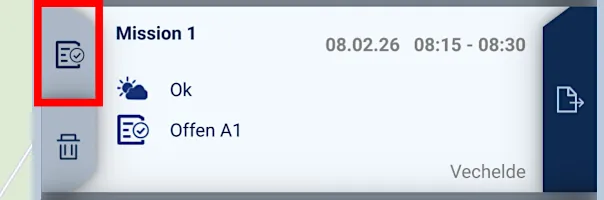
Using the ‘Checklist’ button for each mission, you can determine its operations category.

Go through the checklist and set all parameters according to your operation. If you meet all relevant criteria, the result will be a drone operation in the Open Category (e.g. A1) for your mission. The info points (i) provide valuable hints for all criteria!

Button zum Öffnen der Missionseinstellung im ETANA SkyCompanion

How do I export a mission protocol?

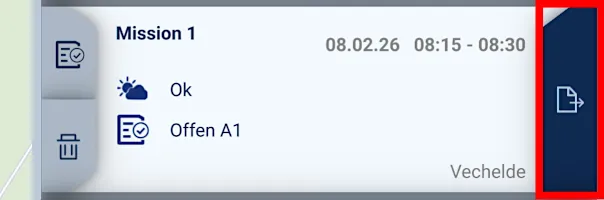
For each mission, you can generate a PDF compliance protocol by tapping the ‘Export’ button on the mission card AFTER completing the mission.
The protocol contains important mission details, the operations category, affected geozones, relevant NOTAMs in the region, and selected weather data (min/max values).
The log is saved on your device in the download or documents folder.

How do I export a mission briefing pack?

For each mission, you can generate a PDF briefing pack by tapping the ‘Export’ button on the mission card BEFORE completing the mission. The briefing pack contains an overview of the most important information for mission preparation. The briefing pack is saved on your device in the download or documents folder.

Button zum Exportieren von Protokollen im ETANA SkyCompanion
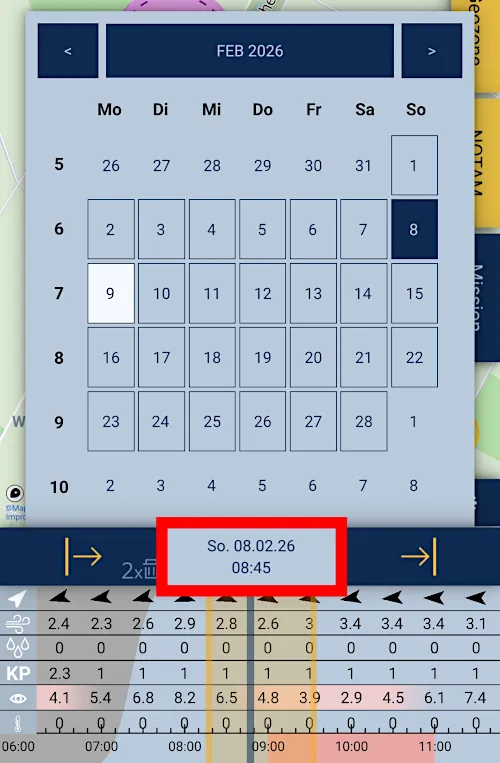
Tap the date in the timeline to open and close the calendar. Use it to plan your desired flight days.
Kalender im ETANA SkyCompanion

Geo-zones and Air Traffic

In the layer menu (bottom right on the map), you can toggle geo-zones and restricted airspaces on and off using the ‘GEOZONE’ option.

If geo-zones or restricted airspaces are present in your mission area, you will receive additional information via the yellow ‘Geozone’ tab on the right edge of the map. Please also pay attention to the info points!

In the settings menu, you can choose which geo-zones are displayed on the map.

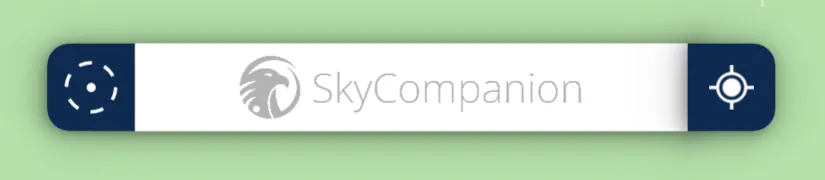
The address bar at the top of the map consists of 3 elements:

  1. The central text field allows you to search for addresses.
  2. The button on the left with the circle icon centers the map on your selected mission.
  3. The button on the right with the crosshair icon centers the map on your GPS position.

Adressleiste im ETANA SkyCompanion

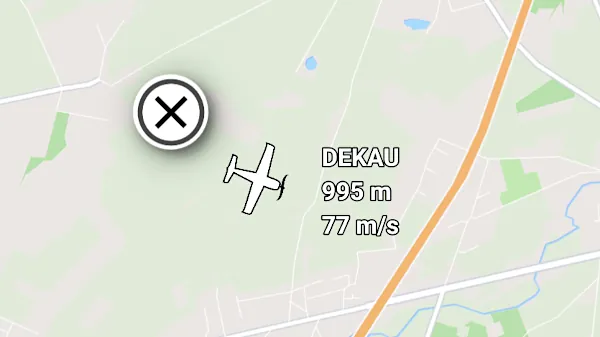
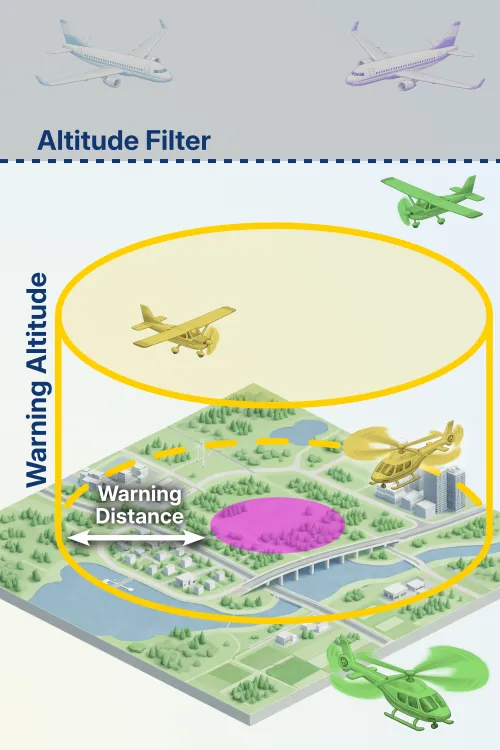
In the layer menu (bottom right on the map), you can toggle live air traffic on and off using the ‘TRAFFIC’ option.

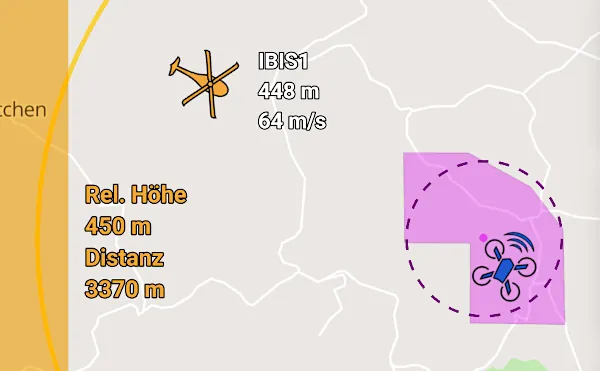
If an aircraft is on course toward your mission area, the app will issue a warning (distance < 5,000 m, altitude difference < 1,000 m).

Verkehrswarnung im ETANA SkyCompanion

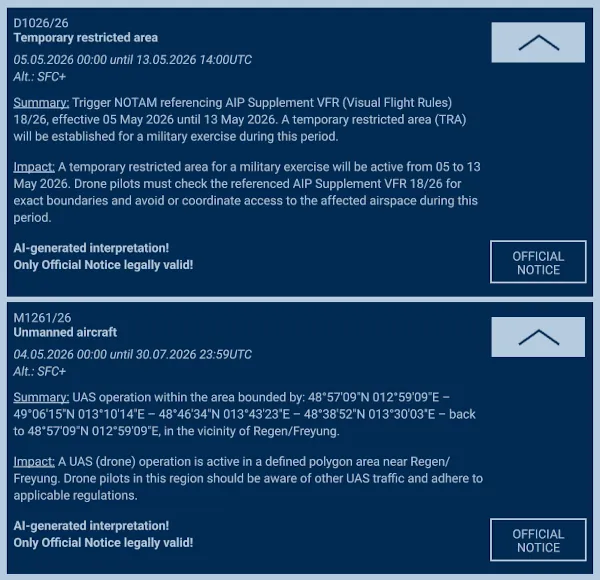
In the layer menu (bottom right on the map), you can toggle NOTAMs and TFRs on and off on the map using the ‘NOTAM’ option.

If NOTAMs are present for your mission area, you will receive additional information via the yellow ‘NOTAM’ tab on the right edge of the map.

In the tab menu, you can show and hide the NOTAMs using the arrow icons, briefly (5 sec.) display them on the map, or view the official, authoritative notice.

NOTAM-Element der Nutzeroberfläche vom ETANA SkyCompanion
If Remote ID is enabled in the settings, you can see UAVs with Remote ID on the map, select them, and mark them as your own.

Weather Information

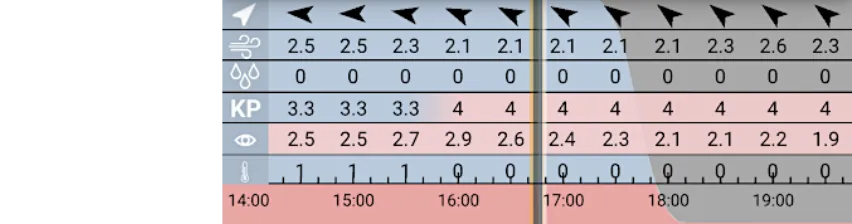
Below the map, the weather bar shows you the most important weather parameters over time. Drag the bar left and right to select a different point in time. The gray shaded area represents nighttime.

The weather data is evaluated and displayed for the selected mission area. If no area is set, the point in the center of the map is used as a reference (crosshairs).

If a row in the weather bar is marked in red, that parameter exceeds the set limit value.
The weather limit values can be defined in the settings.

Double-tap the timeline to reset the time to ‘now’.

Wetter- und Zeitleiste der Nutzeroberfläche vom ETANA SkyCompanion

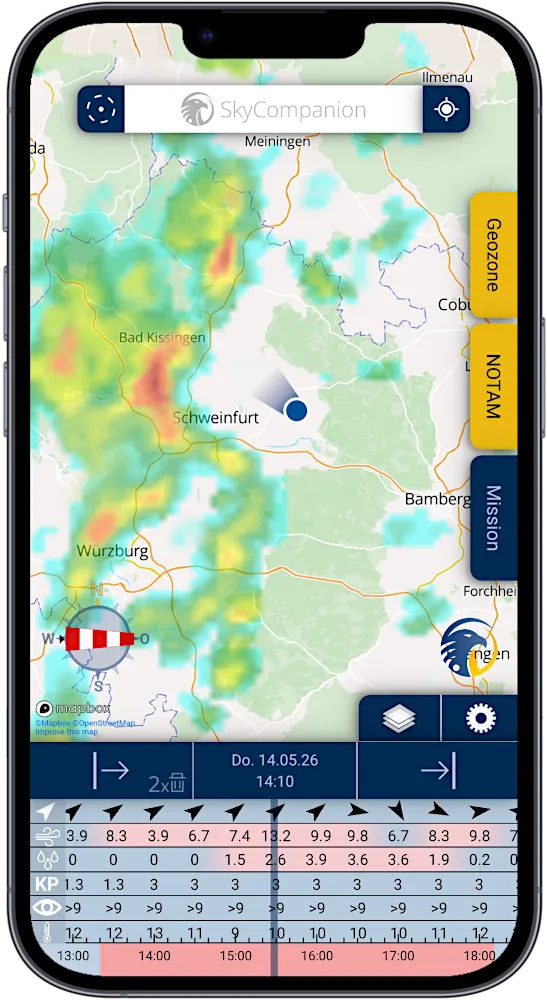
In the layer menu (bottom right on the map), you can toggle the precipitation radar on and off using the ‘RADAR’ option.

The radar is available for 6 hours in the past and 2 hours into the future. Use the timeline at the bottom to set the desired radar time.

Smartphone mit Screenshot der App SkyCompanion, die eine Karte mit Wetterradar und einem Zeitschieberegler mit Wetterdaten anzeigt.

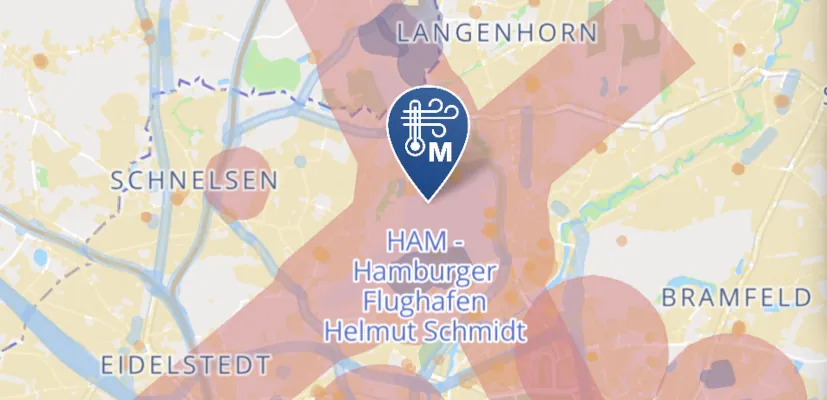
At many airports, you will find official weather reports from the local weather stations, known as METAR & TAF. METAR shows actual measured weather at the airport: wind, visibility, cloud bases, precipitation etc. TAF shows short-term forecast, especially challenging conditions.

METAR-Icon im ETANA SkyCompanion

Data

SkyCompanion only uses highest quality data from official registers and established primary sources, regularly updated for its users.

Details:

  • The most comprehensive and most current geo-zones on the market, compiled from official government registers.
  • Weather data from the German Weather Service (DWD), the Helmholtz Centre of Geosciences (GFZ), and official airport weather stations.
  • Live air traffic data from the world’s largest tracking network, ADSB Exchange, and from OGN
  • NOTAMs from official ICAO publications


Remarks: Currently, data availability is limited to Germany; availability and topicality of the data may be temporarily limited due to technical or other reasons.

Yes, key functions like mission planning and determination of operations categories are available offline; live data (e.g., NOTAMs, weather, traffic) require an internet connection like in any other data related app, too.

Details: You can plan missions, use saved map areas, and prepare flights without a connection. However, without internet, live information is not updated: uncached map date, current weather, live traffic, new NOTAMs. For final pre-flight checks, we recommend going online in SkyCompanion to ensure you have the latest data.

Supported are smartphones and tablets with Android from version 9 or iOS from version 16.

Details: SkyCompanion is optimized for modern smartphones. On Android, at least Android 9 is required; on iPhones, at least iOS 16. For best performance and security, we recommend to update your operating system to the latest version available to you. Older devices or beta versions may show differences in functionality.

SkyCompanion is GDPR-compliant; we do not share user data. App data stays on the device, servers are located in Germany.

Details: SkyCompanion does not collect or share personal user data with third parties except for mandatory data within the subscription process of the according app store.

The app data, e.g. mission data, settings remains on your device. Server-side components, e.g. geo-zones, weather are hosted on German servers. Details are available in our privacy policy. For additional security (e.g., device lock, OS updates), we recommend standard best practices.

Further questions? Feel free to contact our developers here!